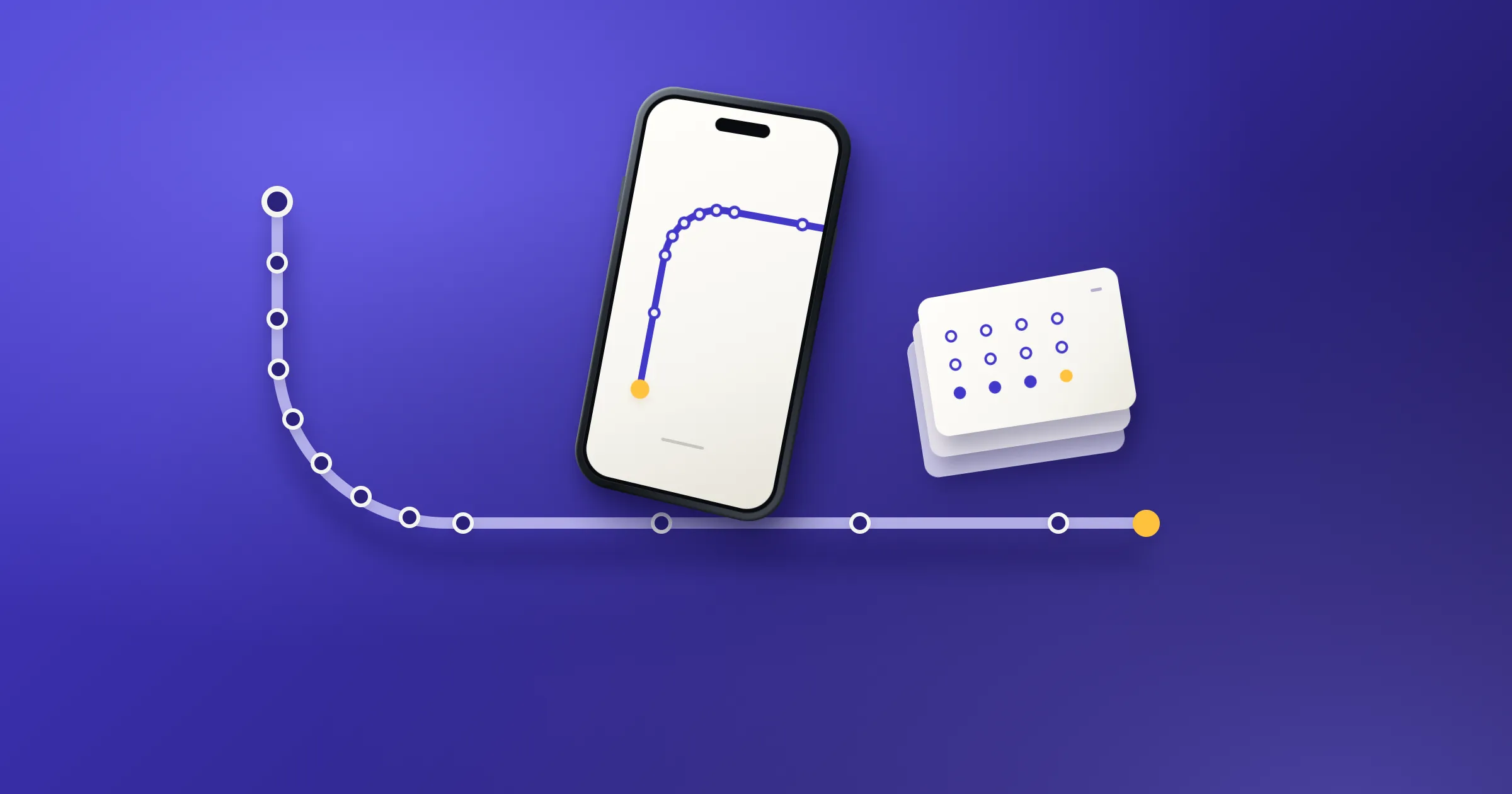

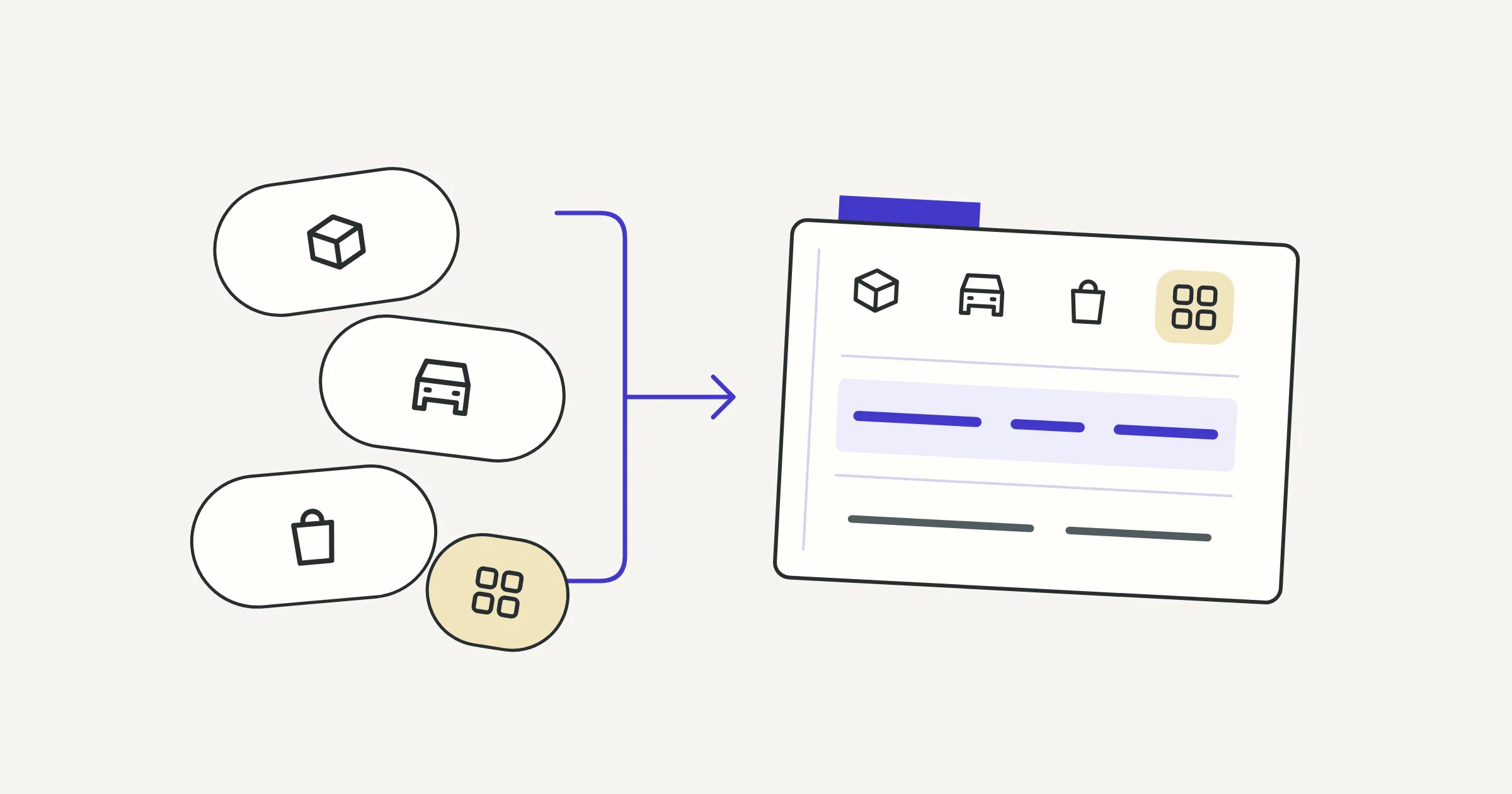
You can keep Amazon Flex, Uber, DoorDash, and other work in the same Orphie Log. Select more than one name under Driving for, or save separate shifts when you want separate records. Each shift has one mileage total; selecting several names does not divide that total between them.
Pick the labels that describe your work
On the Drive screen, choose your vehicle and who you plan to drive for. Then tap Start shift. Nothing starts automatically when you open a gig app or when the car moves.
The Driving for names are labels, not account connections. Orphie does not sign in to your gig accounts or verify the work with a platform. You can select several names before Start and keep logging while you use those apps.
If your work is not on the list, add a name in Settings › Driving for › “Add your own.” It then appears under Driving for on the Drive screen. That can be another service or your own work, such as “Client visits.” Create your own names in Settings, not during first-run setup.
The choice to make before driving is whether you want one shared record or distinct records for separate stretches. Orphie supports both. It does not make that choice for you.
Choose a shared shift or separate shifts
| How you want to record the work | What to do | What the record tells you |
|---|---|---|
| Keep several companies on the same shift | Select the relevant names, then Start | One route and mileage total with several Driving for names |
| Keep successive gigs separate | End and Save the first shift, then Start another | Separate records in the same Log |
| Change who an open shift is for | Use the profile line to change the selection | The whole shift’s Driving for list changes, without a switch time |
If you work for several companies within the same shift, Orphie keeps recording without a new Start tap for each one. It does not detect the switch, save when it happened, or attribute the route before and after it to different platforms.
Keep any additional company-specific detail you need yourself. If the work overlaps, selecting multiple names does not settle how to allocate the miles. If the work is separate and you want separate records, End, Save, then Start again with the relevant name.
You can filter the Log by tax year, Driving for, or vehicle when you review it. A label helps you find a shift; it is not a mile-by-mile account of which platform you used.
Do not add the Driving for totals together
The Statement in Taxes has Driving for totals. A shift for more than one counts under each, so those rows overlap.
A shift labeled Uber and DoorDash therefore contributes its whole mileage to the Uber row and its whole mileage to the DoorDash row. Adding those rows would count that same driving twice. Use the overall business-mile total for the selected year to see the logged mileage, then review the underlying shifts when you need detail.
This is a reporting limit, not a reason to leave off someone you worked for. Keep labels accurate and understand what the report sums. Orphie also does not track earnings, fares, tips, or expenses. Its Driving for rows cannot tell you which platform paid best or calculate profit per mile.
Pause the logging, not just the gig app
When you take a personal drive, tap Pause in Orphie before you set off. Closing a gig app does not pause Orphie. While paused, location is off and no miles or route are recorded. Resume starts a new route segment where you are then; the map leaves a gap instead of drawing a line across the unrecorded stretch.
When work ends, tap End, review, then Save. After End while recording, location can continue for up to 10 minutes or until parked for 2 continuous minutes, whichever comes first. Resume within that window keeps the extra stretch. Save keeps the End-time snapshot and discards the extra stretch. End from Pause leaves location off.
Give the business purpose more detail than the labels
Check the vehicle, Driving for names, stop count, and business purpose before saving. For mileage records, Publication 463, Table 5-1, lists the business destination and purpose alongside miles and dates. A company name alone does not explain the particular work. Write a business purpose that another reader can understand without opening your gig accounts.
Orphie drafts an editable business purpose. Detected stops have no place names. City names in business purpose is optional and off by default. When enabled, it sends the shift’s start and end location to Apple on iPhone or Google on Android once after End to get city and state names. It does not look up individual stop names. Apple Maps or Google Maps also draws the route map; no Orphie server stores your log.
If a saved shift needs correction, you can edit its Driving for names, vehicle, stops, business purpose, and note. GPS-mile corrections require a reason and preserve the original GPS miles and correction history. The entry gets a “Miles corrected” label.
Forgotten shifts can be added by hand. They stay permanently marked “Added by hand” and have no recorded route. Hand-added mileage changes enter the history without requiring a reason. Adding an entry does not recover a drive that Orphie never recorded.
Export the details, not just a summary
In Taxes, Export PDF and Export CSV each make one file for the selected year. Both include each shift’s business purpose and Driving for names, but neither includes route coordinates or the separate note field. Put the explanation you want your preparer to read in the business purpose. The exports are records to review, not a completed tax return.
Settings › Export all data creates a separate all-years ZIP with notes and complete correction histories. Use it when you need those underlying records.
Your log stays on your phone. Backup and restore is free in Settings. Back up now saves one file to a place you choose, and you can restore from it later. See Back up and restore. The year’s PDF and CSV and the all-years ZIP are for reading and can’t restore your log. Save copies of exports somewhere you can reach apart from the phone.
This is general recordkeeping information, not tax advice. Ask a tax professional about your own return.